




Contents
Account Security
Securing your email account is essential, it safeguards your personal information, prevents unauthorized access, and ensures your communications remain private and protected. This page guides you through securing your Runbox 7 account.
- Go to Runbox security settings.
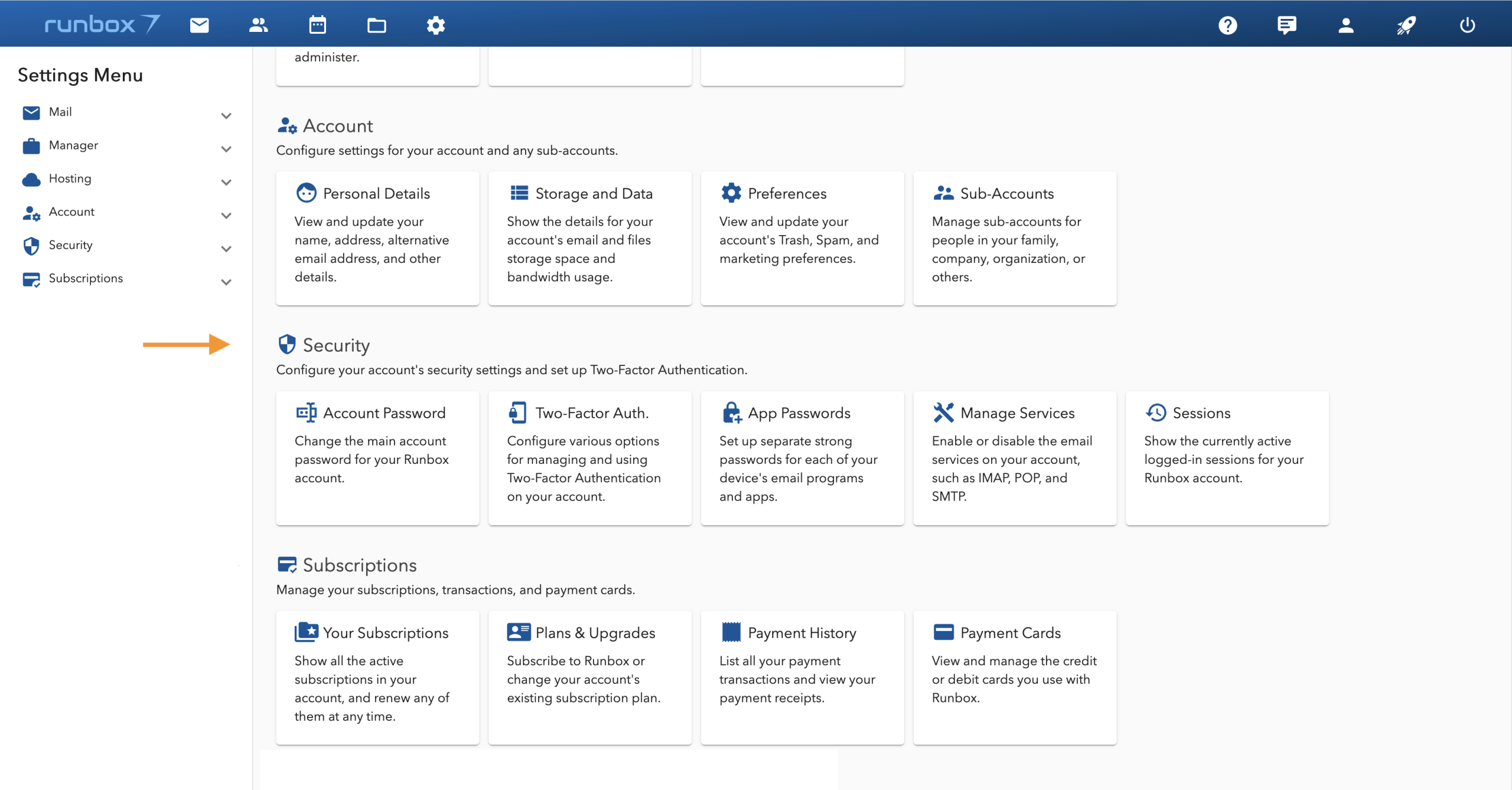
1. Account Password
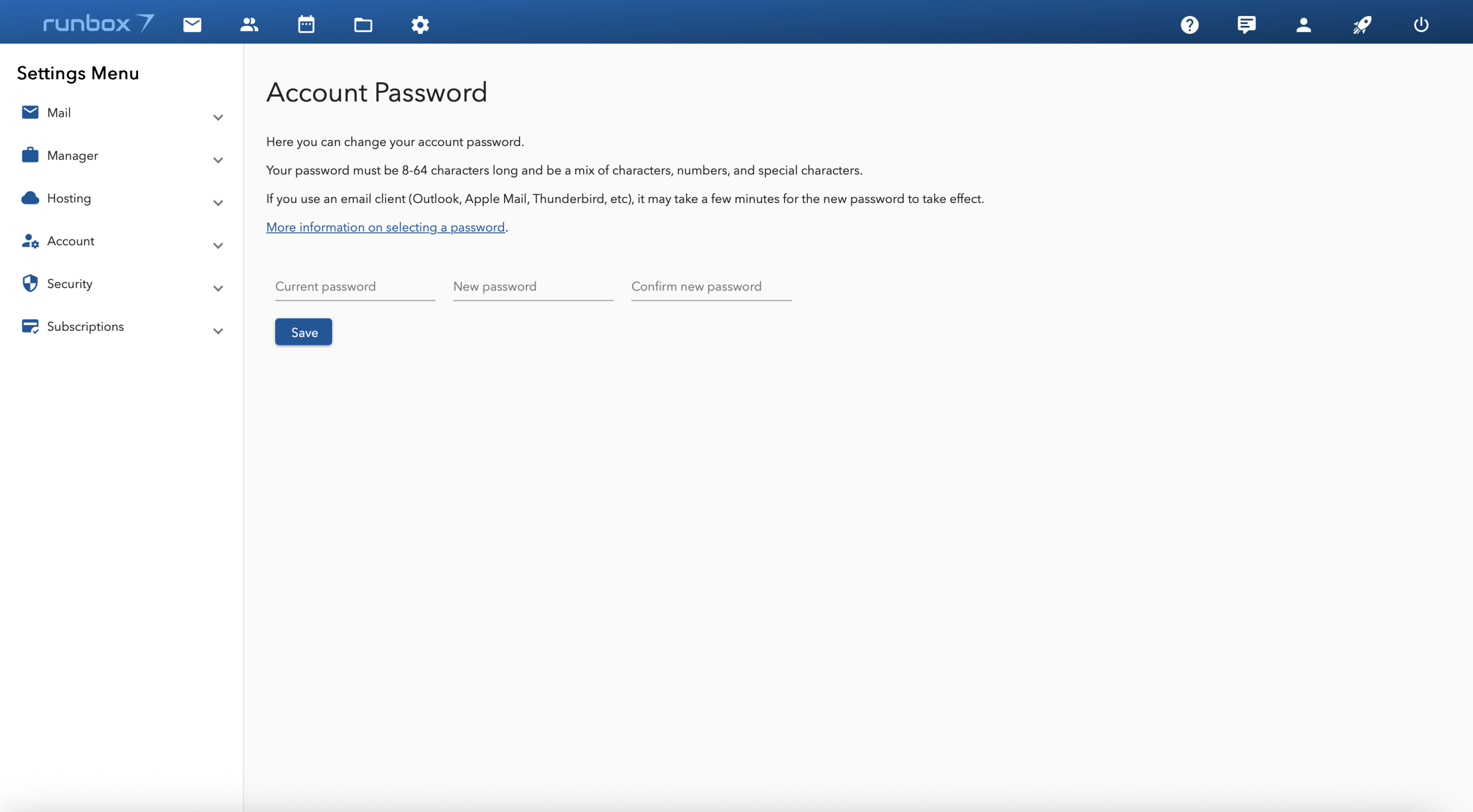
Setting a strong password for your Runbox account is essential for protecting your personal information, preventing unauthorized access, and safeguarding against identity theft and cyber threats. See tips for setting a strong password below.
- Update your Runbox account password.
2. Two-Factor Authentication
Two-Factor Authentication (2FA) adds an extra layer of security to your account. After enabling 2FA, you’ll need both your password and a second form of verification to log in.
Important: Once 2FA is enabled, your regular account password will not work for IMAP, POP, SMTP, FTP, or Cal/CardDAV services. You’ll need to use Application Passwords for these services. Webmail access will still require your regular password + 2FA.
- Enable Two-Factor Authentication (2FA) for your Runbox account.
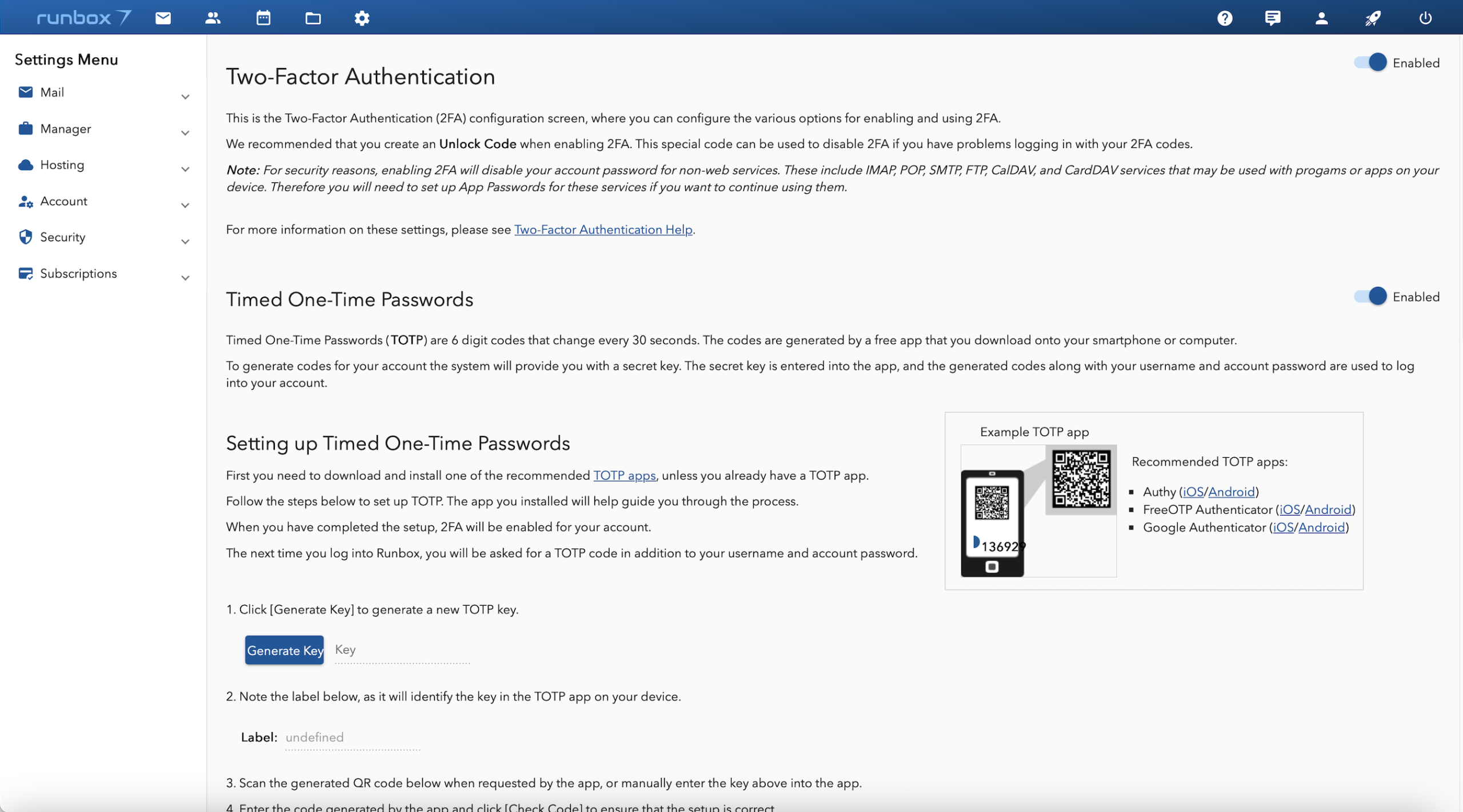
Timed One-Time Passwords (TOTP)
Timed One-Time Passwords (TOTP) are 6 digit codes that change every 30 seconds. The codes are generated by an app that you download onto your smartphone or computer.
To get started, download a TOTP app such as Authy, FreeOTP, Google Authenticator onto your mobile phone and follow their instructions, or you can use the Apple Password app for iPhone/Mac. The app will generate time-based login codes.
Note: Ensure your device’s date and time are accurate, as TOTP codes are time-sensitive.
- Generate Timed One-Time Passwords in your Runbox account.
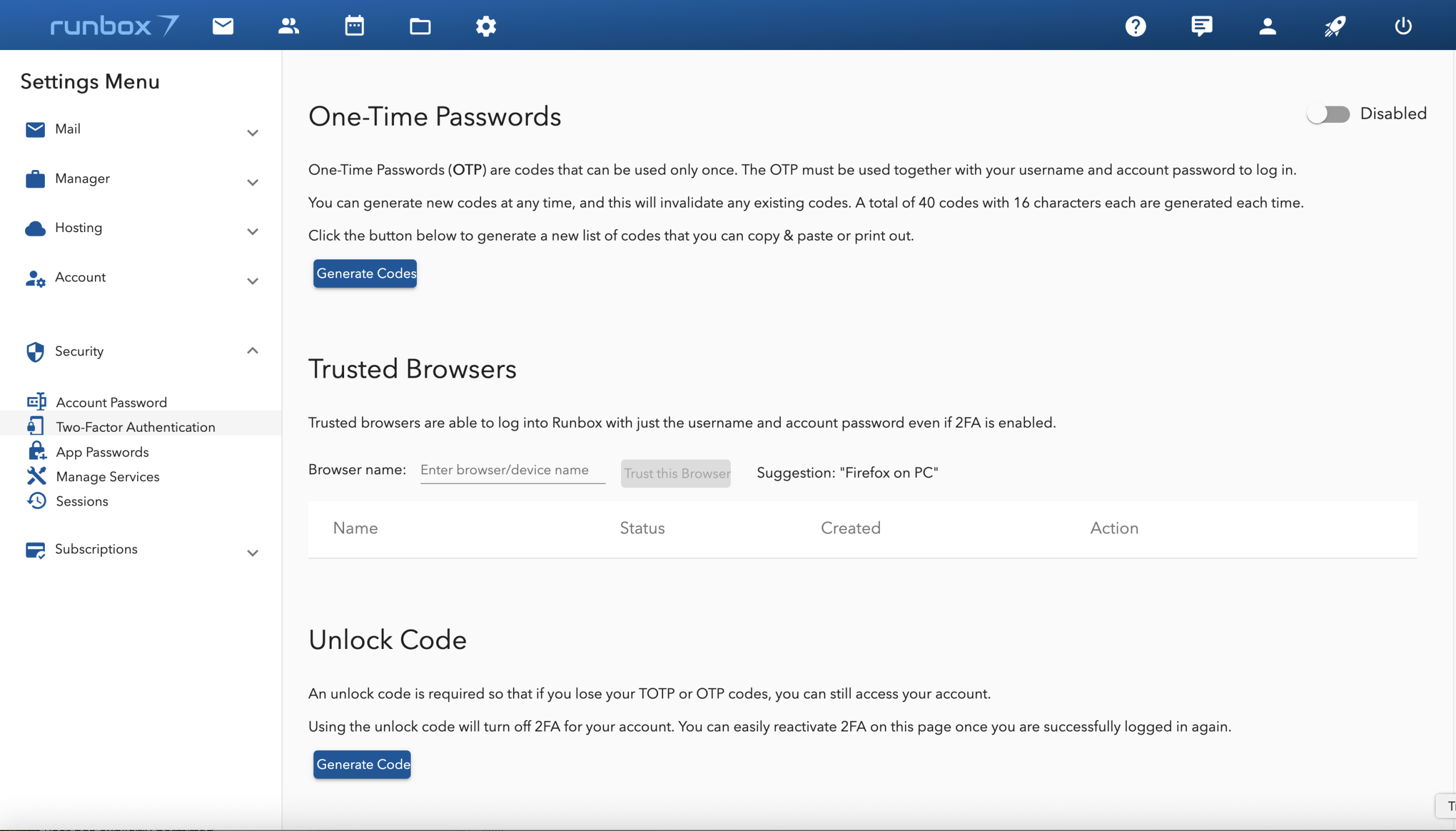
Mark your current browser as “trusted” to skip 2FA for future logins. Trusted browsers are able to log into Runbox with just the username and account password even if 2FA is enabled. Use this only on secure, personal devices.
Caution: Only trust browsers on devices that are secure and not shared with others.
- View your Trusted Browsers.
An unlock code is required so that if you lose your 2-Factor TOTP or OTP authentication codes, you can still access your account.
Important: Store your unlock code securely, as it is your backup method to disable 2FA.
- Generate Unlock Code for 2FA.
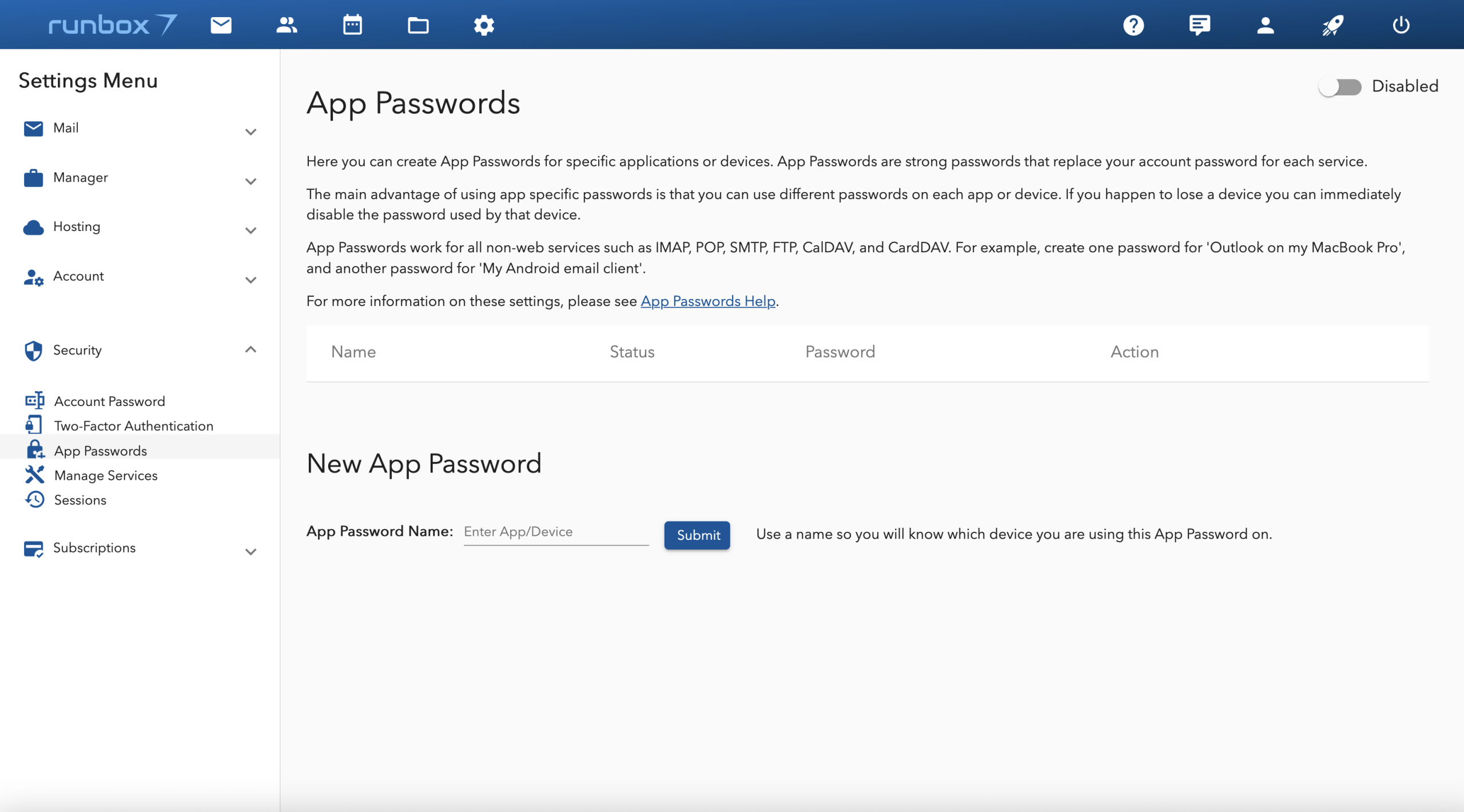
3. App Passwords
If you use email clients like Thunderbird, Outlook or Apple Mail, generating unique app passwords for each device limits the risk if one device is compromised and adds an extra layer of security. Use unique passwords for each app/device.
- Set App Passwords in your Runbox account.
4. Manage Services
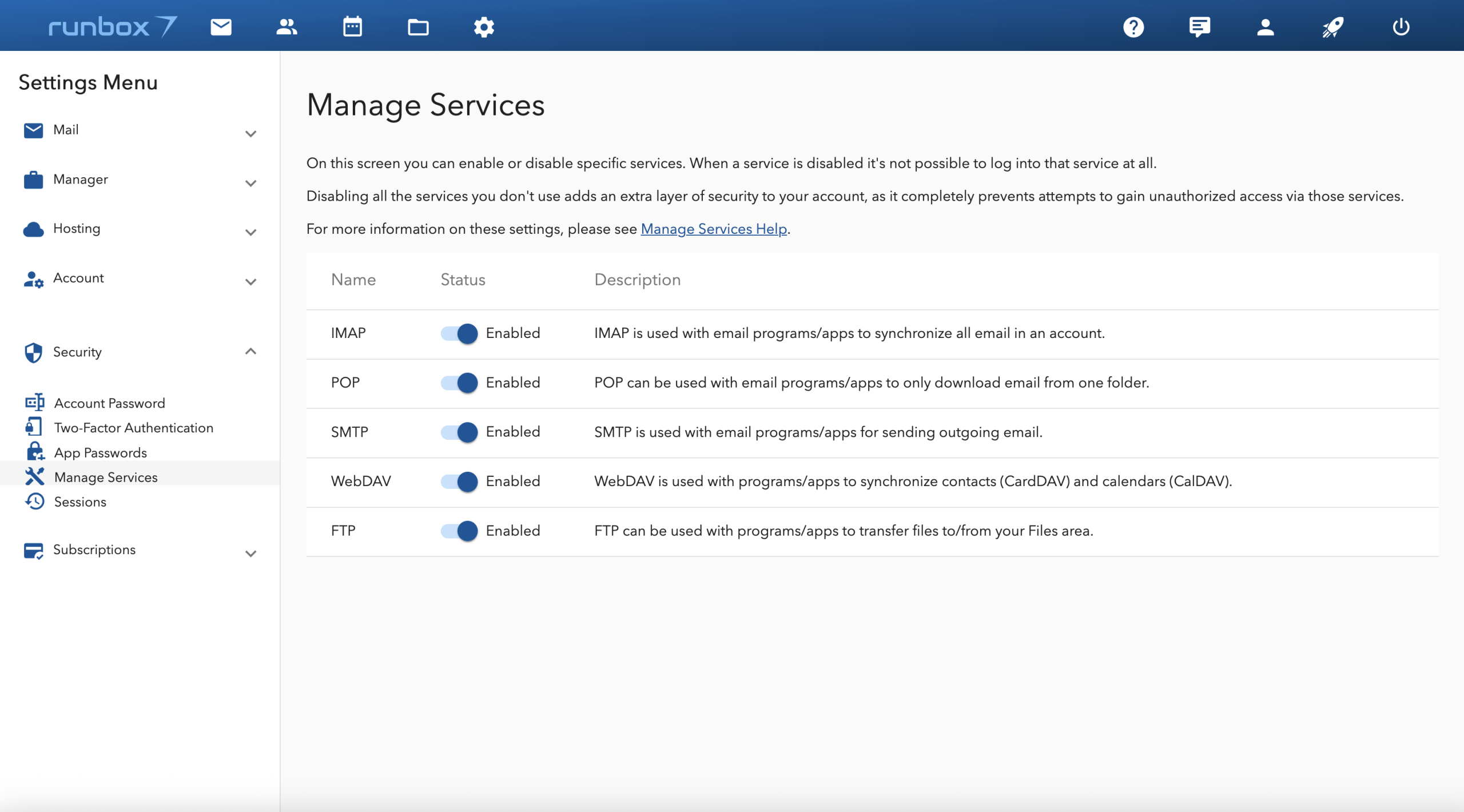
To enhance your account security, disable any unused services like IMAP, POP, or SMTP. This minimizes potential entry points for unauthorized access. For instance, if you only use webmail, consider disabling all other services and email clients. Note that disabling a service will deactivate it across all your devices.
- Enable or disable email Services on your account, such as IMAP, POP, and SMTP.
5. Sessions
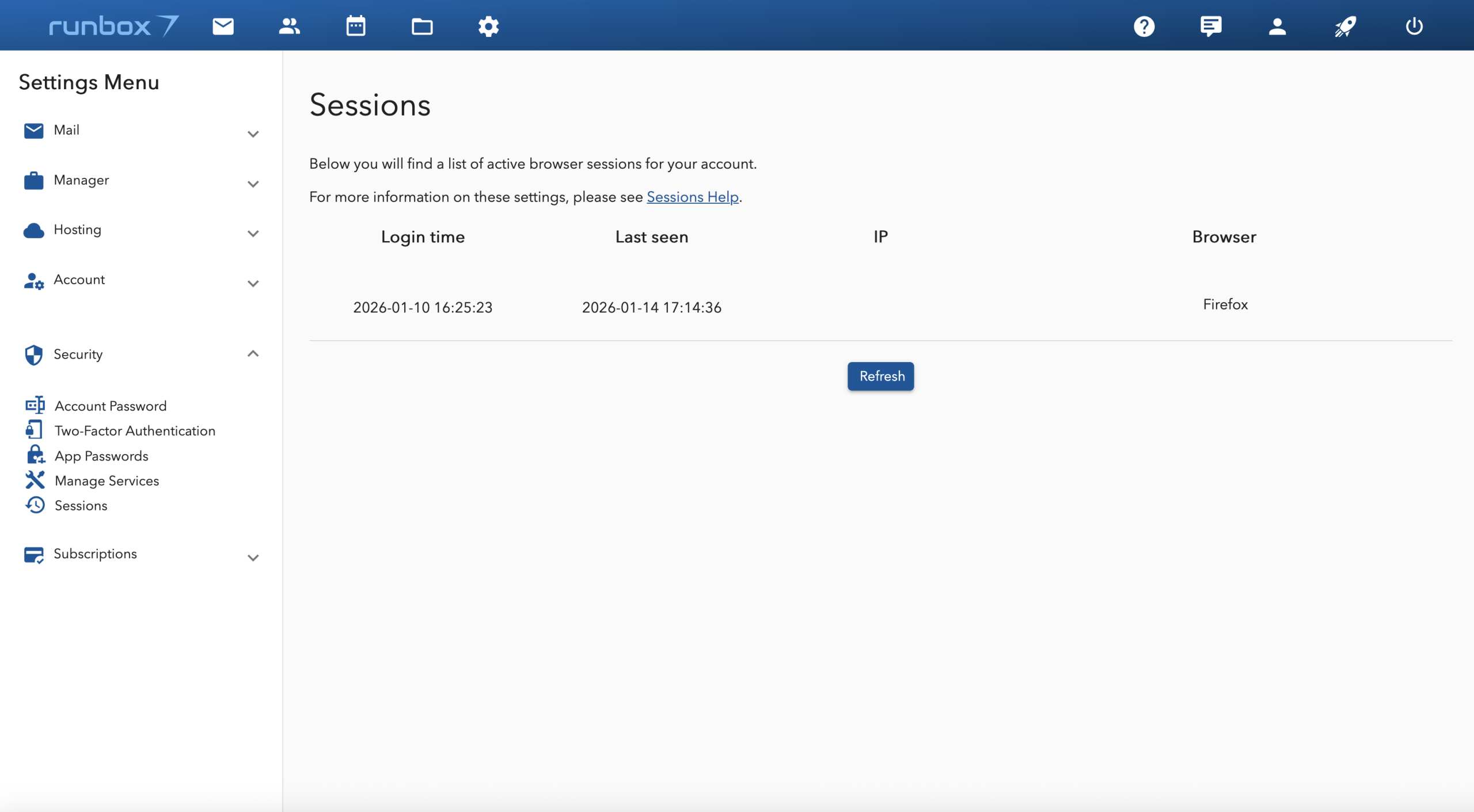
Regularly check your last login locations and active sessions in the Account Security section. If you notice any unfamiliar activity, revoke access immediately and change your password.
- View the for your Runbox account.
6. Alternative Recovery Email
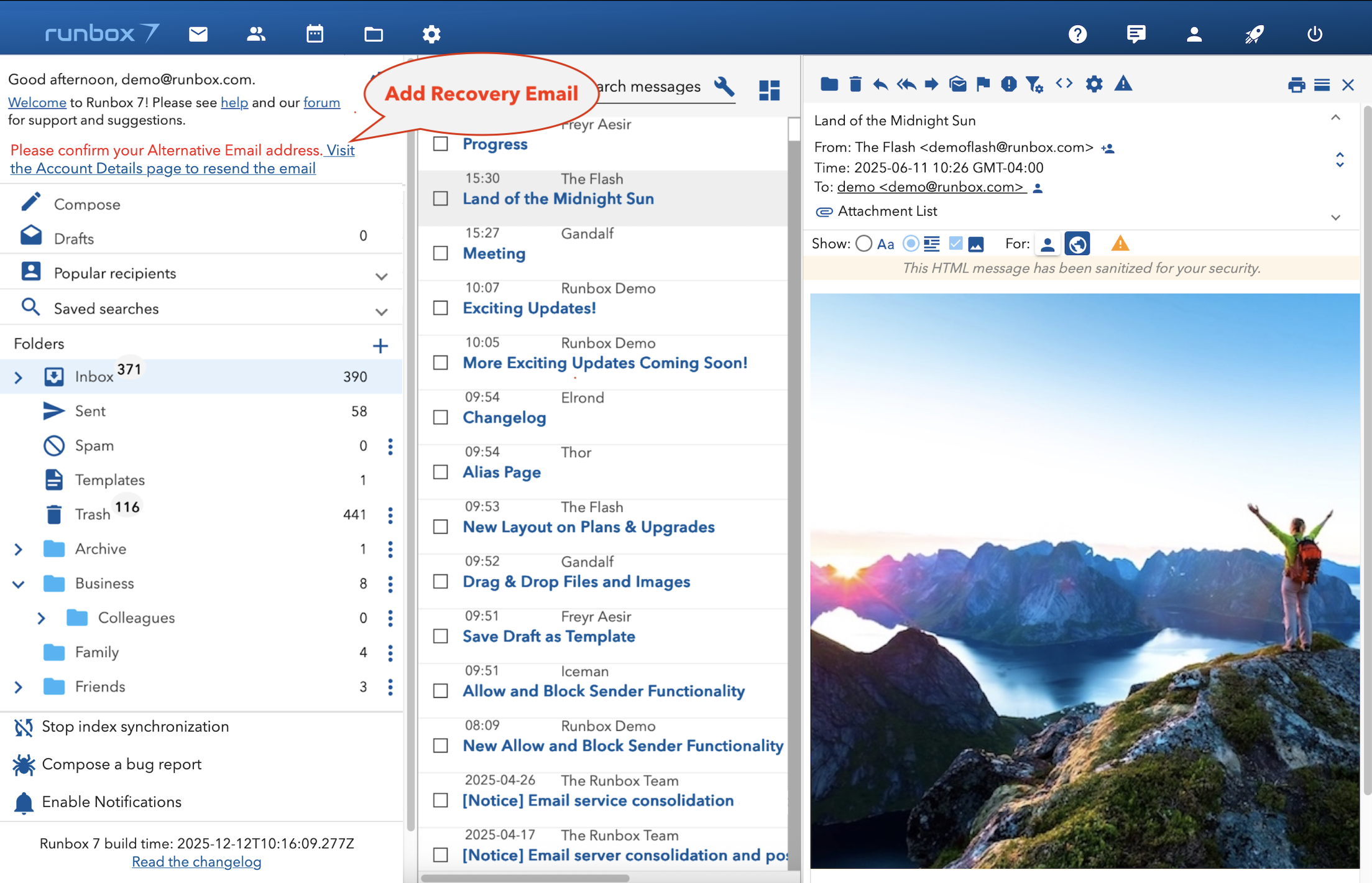
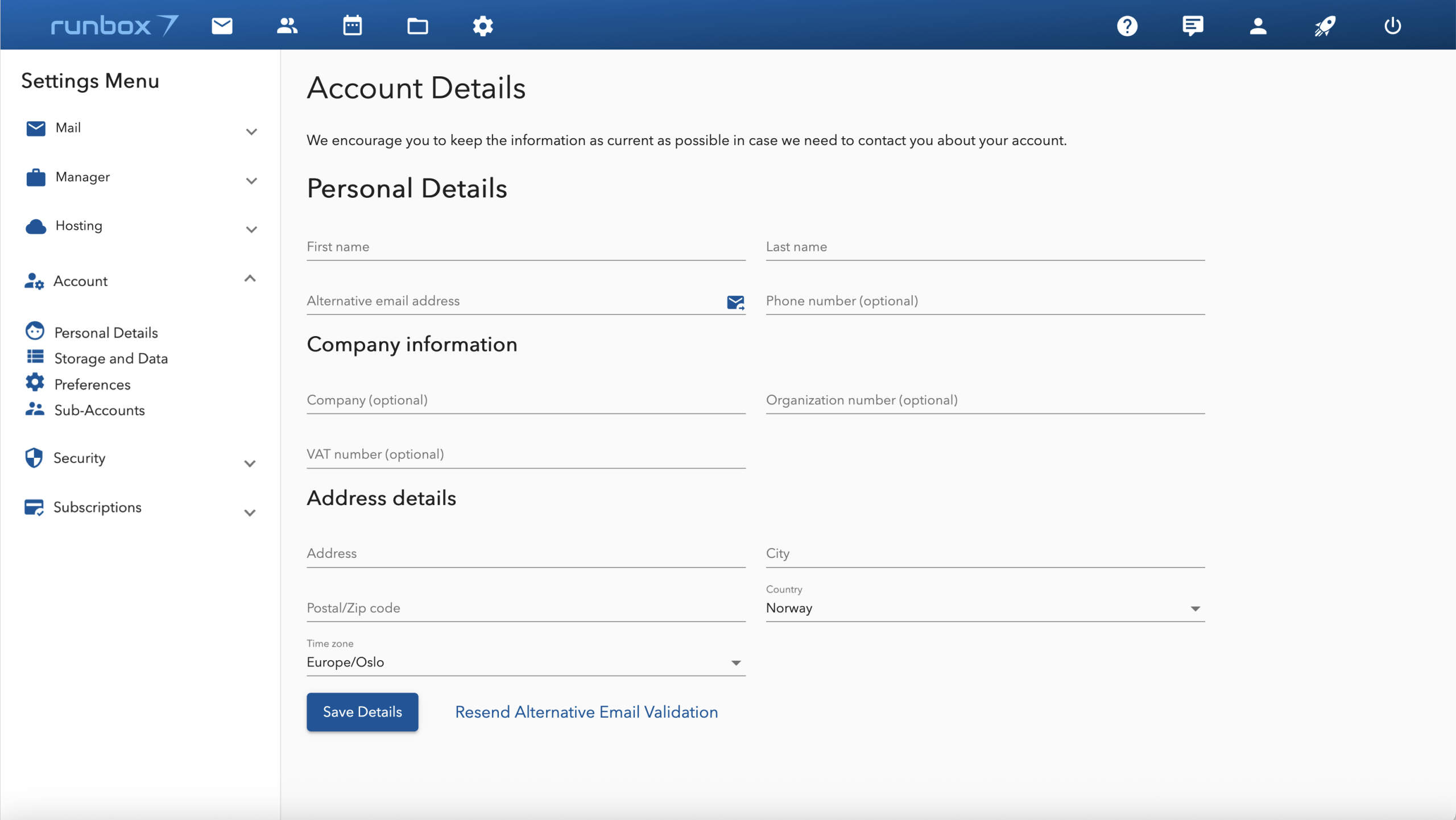
Ensure your alternative email address is up to date. This is crucial for password recovery, account notifications, and regaining access to your account if you ever get locked out. Having a verified recovery email address on file ensures you can quickly and securely reset your password and restore access to your account.
- Check your account details and update your Recovery Email
7. Setting a strong password
Tips for Creating a Strong Password
- Avoid common words or phrases (e.g., “password123”).
- Use a passphrase (e.g.,
BlueSky$2026!Moon). - Be 8 to 64 characters long.
- Mix characters (letters, numbers, special characters)
- Never reuse passwords across multiple accounts.
- Update your password regularly for added security.
If you need help creating a secure password, consider using a password manager to generate and store complex passwords safely.
- Update your Runbox account password.