




Contents
Message List
Runbox 7 displays your messages in a . The interface is designed for flexibility:
- Independent Scrolling: The folder list, message list, and preview pane each scroll independently, allowing you to navigate without losing context.
- Hide Folder List: For a cleaner view, you can hide the folder list with a single click.
- Real-Time Updates: New messages appear automatically in the list.
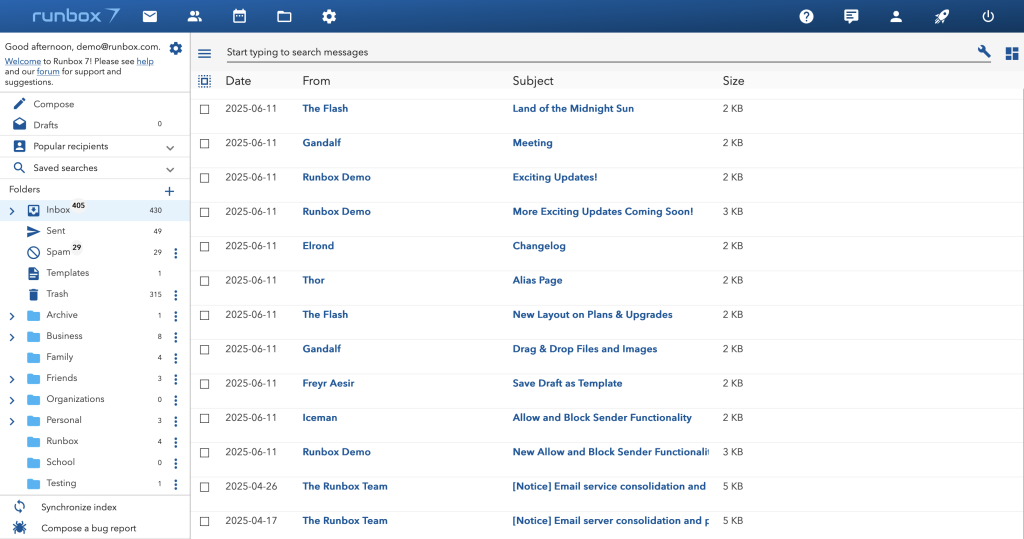
Message List Options
- Inline Previews: Show the first line of each message in the list.
- Threaded View: You can group incoming and outgoing messages according to their subject line in a message thread. To activate this feature choose the “Threaded” option available at the top right of the page. Note that this feature requires synchronization of the account index (turn index synchronization on).
- Unread Only: Display only unread messages.
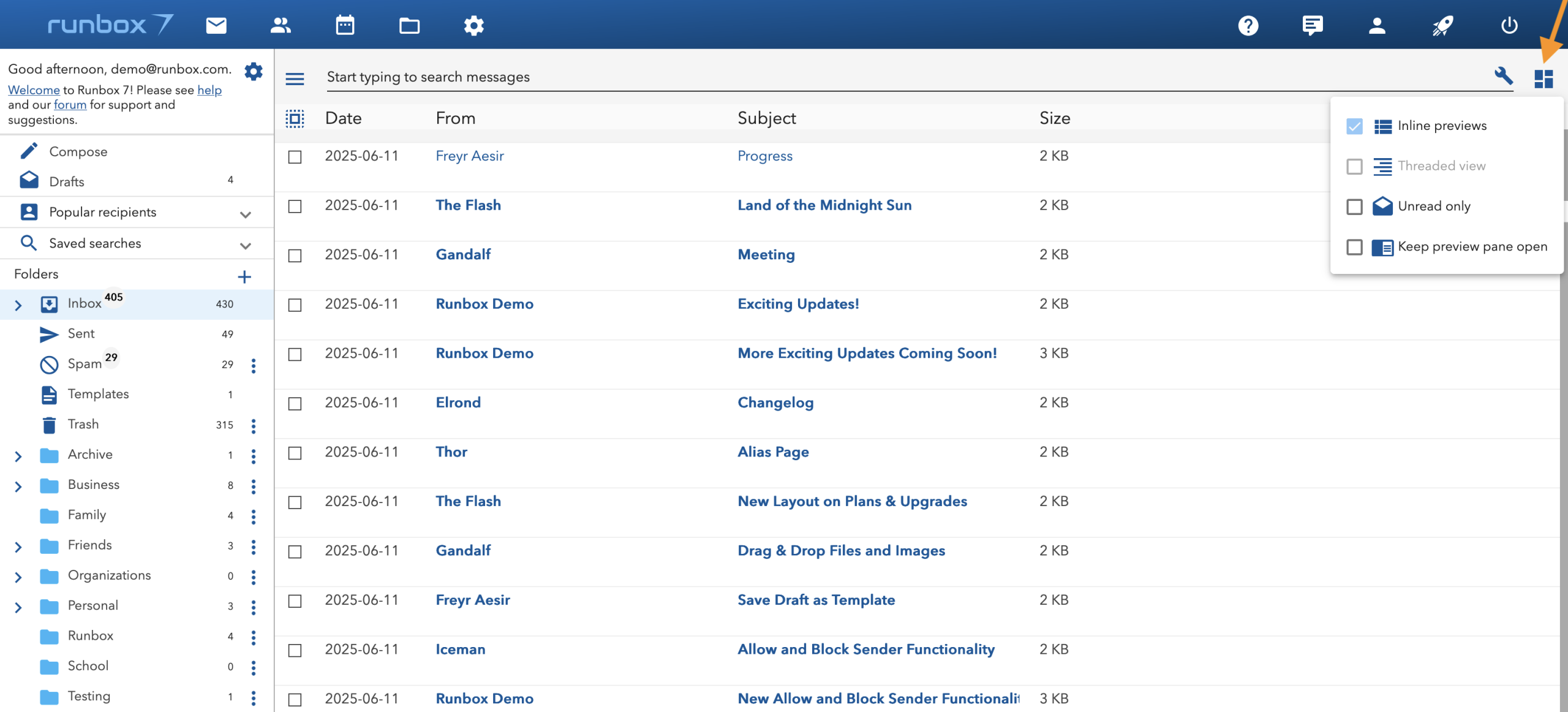
To select messages in the message list, click on the check box to the left. You can then use the message action buttons at the top of the message list, which are respectively:

- Move message to Folder
- Move message to Trash
- Mark as unread
- Mark as read
- Mark as flagged
- Mark as unflagged
- Report as spam
Preview Pane
- Click on a message to preview it in the pane.
- Choose between vertical or horizontal preview modes.
- Use the Full Height button in horizontal mode to maximize the view.
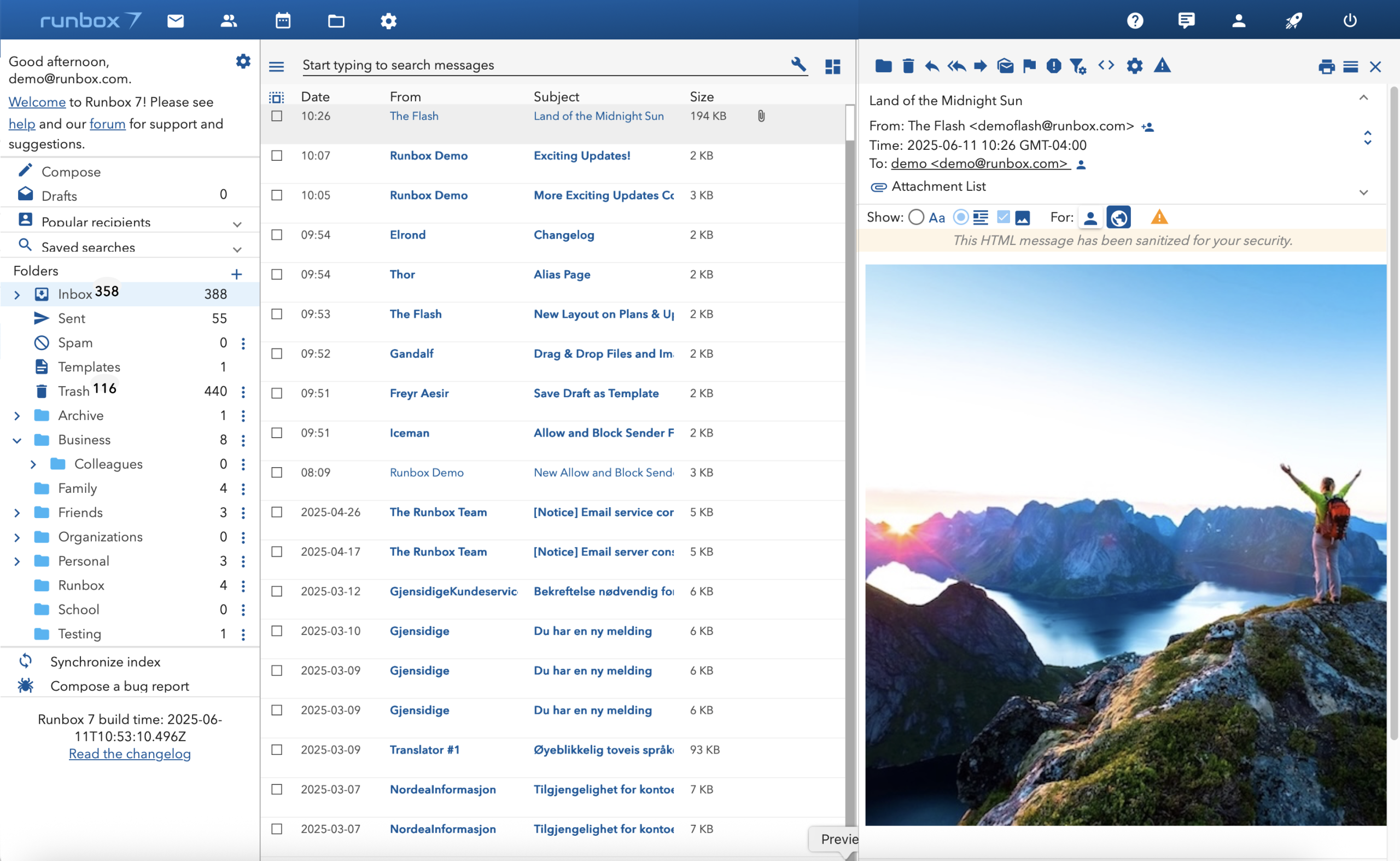
Preview Menu
When a message is selected, the preview pane displays a toolbar with the following actions:

- Move to Folder
- Move to Trash
- Reply
- Reply to All
- Forward
- Mark as Unread
- Mark as Flagged
- Report as Spam
- Block/Allow Sender
- View Source
- HTML Settings
- Toggle Horizontal/Vertical Preview
- Close
HTML message view controls
The HTML message view controls allow you to save HTML and set image display preferences for individual senders or for all senders. The examples below illustrate how this functionality can be used.
Show the text version for the current message:

Show the HTML version with images for all messages from this sender:

Our powerful virus filter detects and blocks potentially harmful attachments or links in emails, safeguarding your device from malware and other security threats.

Bulk Select
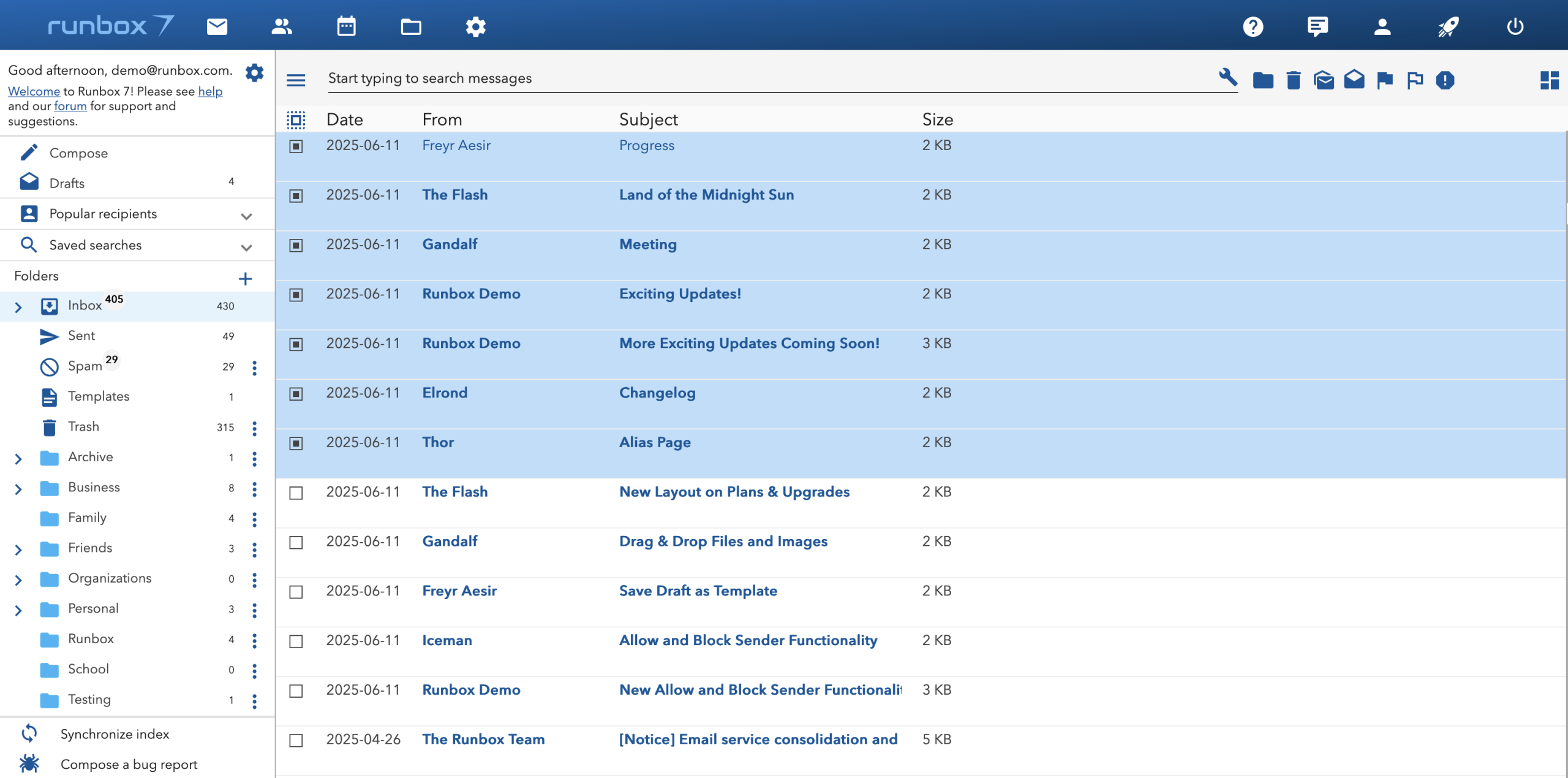
- Select multiple messages by clicking and dragging over checkboxes.
- Use the Check All box to select all visible or all messages in the list.
- Perform bulk actions like moving, deleting, or marking messages.
Search Functionality
Real-Time Search
- As you type in the search box at the top of the screen, search results update in real time.
- This feature uses the for fast, efficient searches.
- Results appear instantly, helping you find messages quickly.
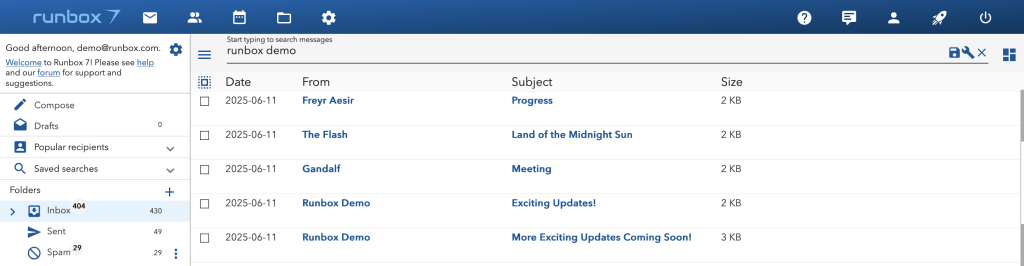
Search Parameters
- Use Boolean operators (
AND,OR) to combine search terms. - Specify fields to search, such as:
from:superman(searches messages from “superman”)subject:Earth(searches messages with “Earth” in the subject line)
- Limit searches to specific folders using
folder:Inbox(). - For subfolders, use the notation
folder:Folder.Subfolder.
Advanced Search
To access advanced search options, click the 🔧 to the right of the search field. This opens additional filters:
Fields Available:
- From: Search by sender.
- To: Search by recipient.
- Subject: Search by subject line.
- Body: Search within the message body.
- Date Ranges: Filter messages by specific dates or ranges.
- Unread Only: Filter for unread messages (must be combined with other parameters).
Note: The “Unread only” option can only be used in combination with other search parameters. To view all unread messages, use the “Unread only” option in the Message List Options (see above).

Date Ranges
You can refine searches using date ranges. Examples include:
date:2023: All messages in 2023.date:202310: All messages in October 2023.date:20231001: All messages on October 1, 2023.date:2022..2023: All messages from 2022 to (and including) 2023.date:20231001..202311: All messages from October 1, 2023, to (and including) November 2023.
Offline Search
- The allows you to search your emails without an internet connection.
- To remove the local index, click ““ at the bottom of the folder pane.
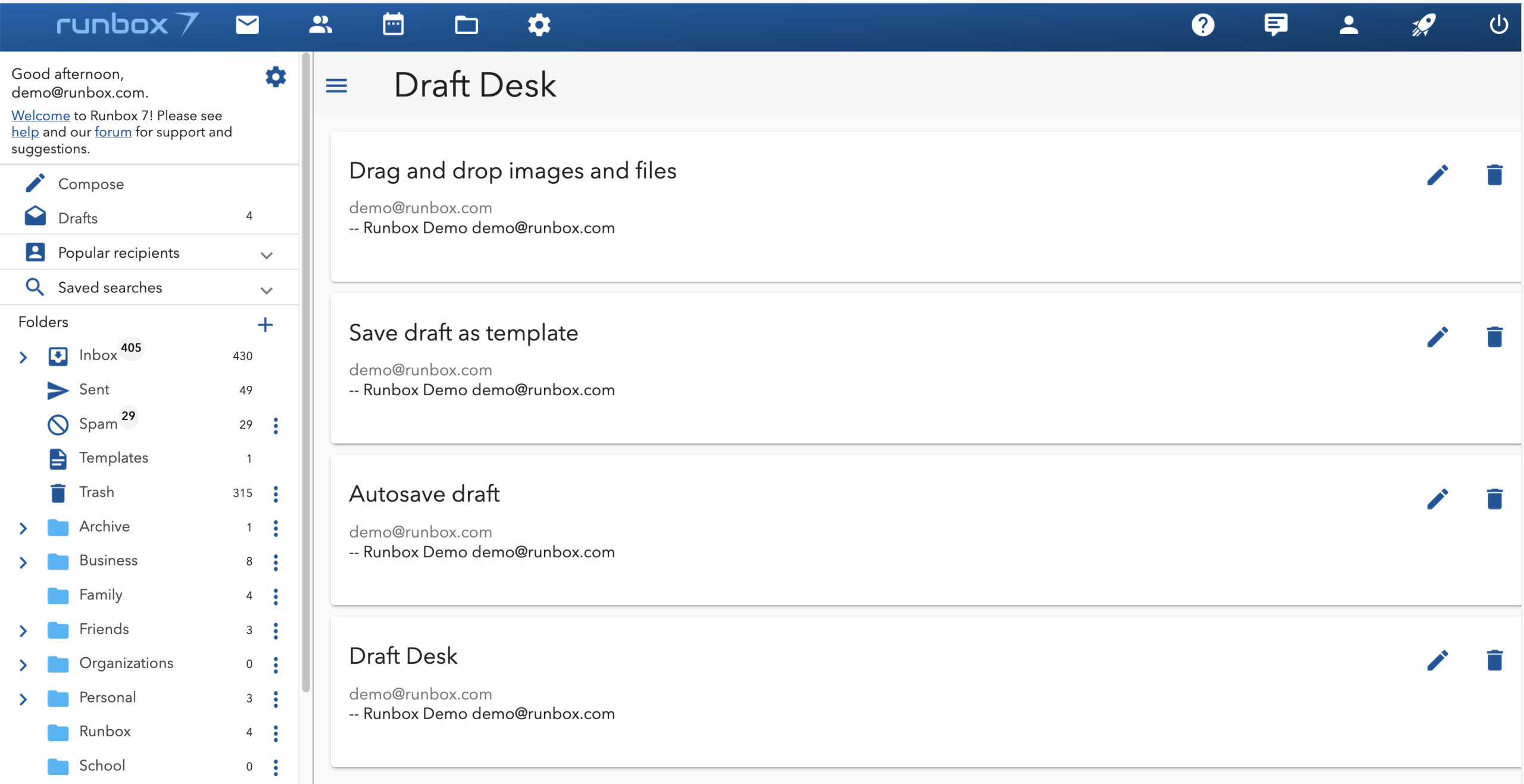
Draft Desk
- Autosave: .
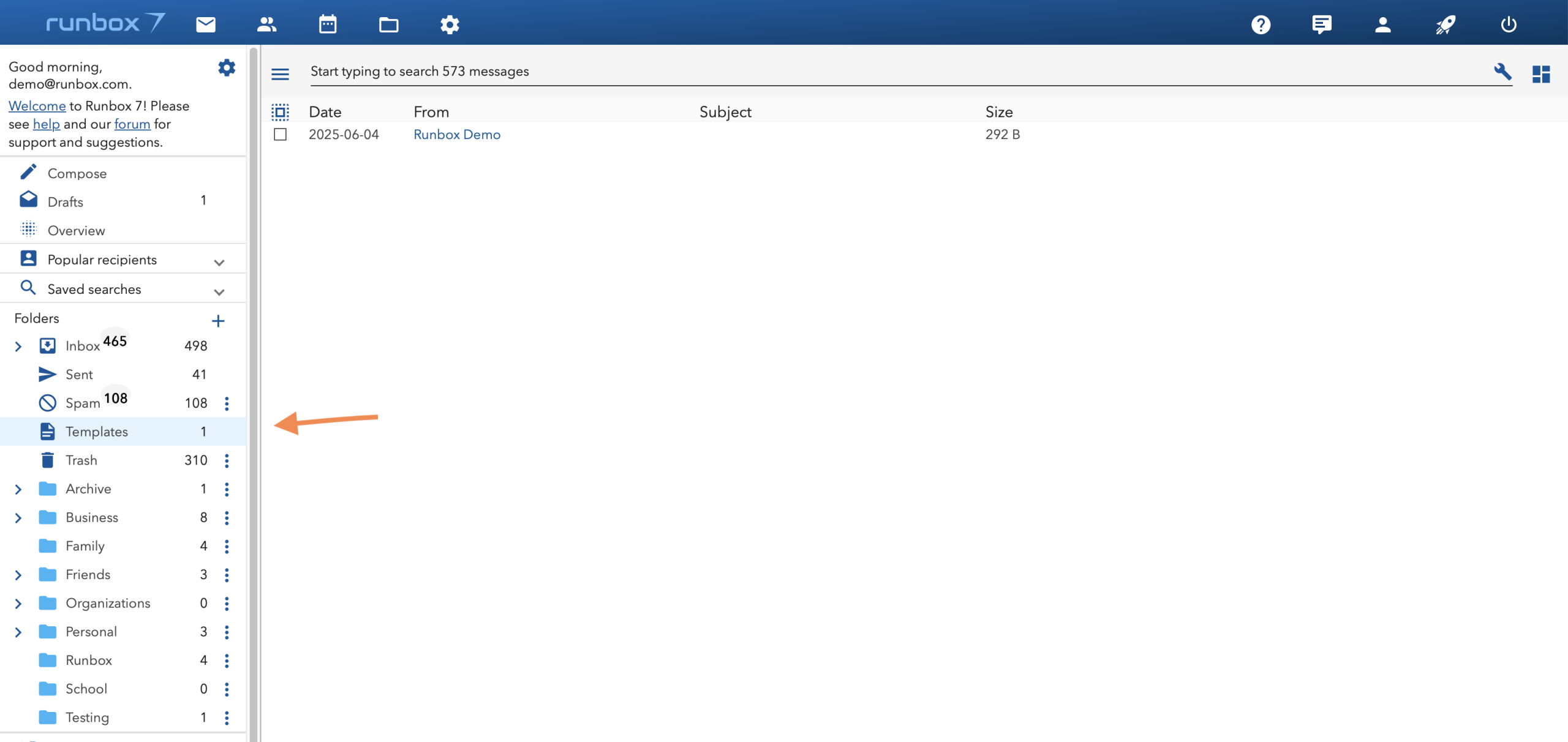
- Templates: Save drafts as templates for reuse.
Drag & Drop Files and Images
- Multiple Files: You can drag and drop multiple files at once.
- Supported Formats: are supported.
- Efficiency: This method is , making it .
Simply drag a file over the attachment area, and you’ll see a “Drop files here” prompt. Drop your file, and it uploads automatically.
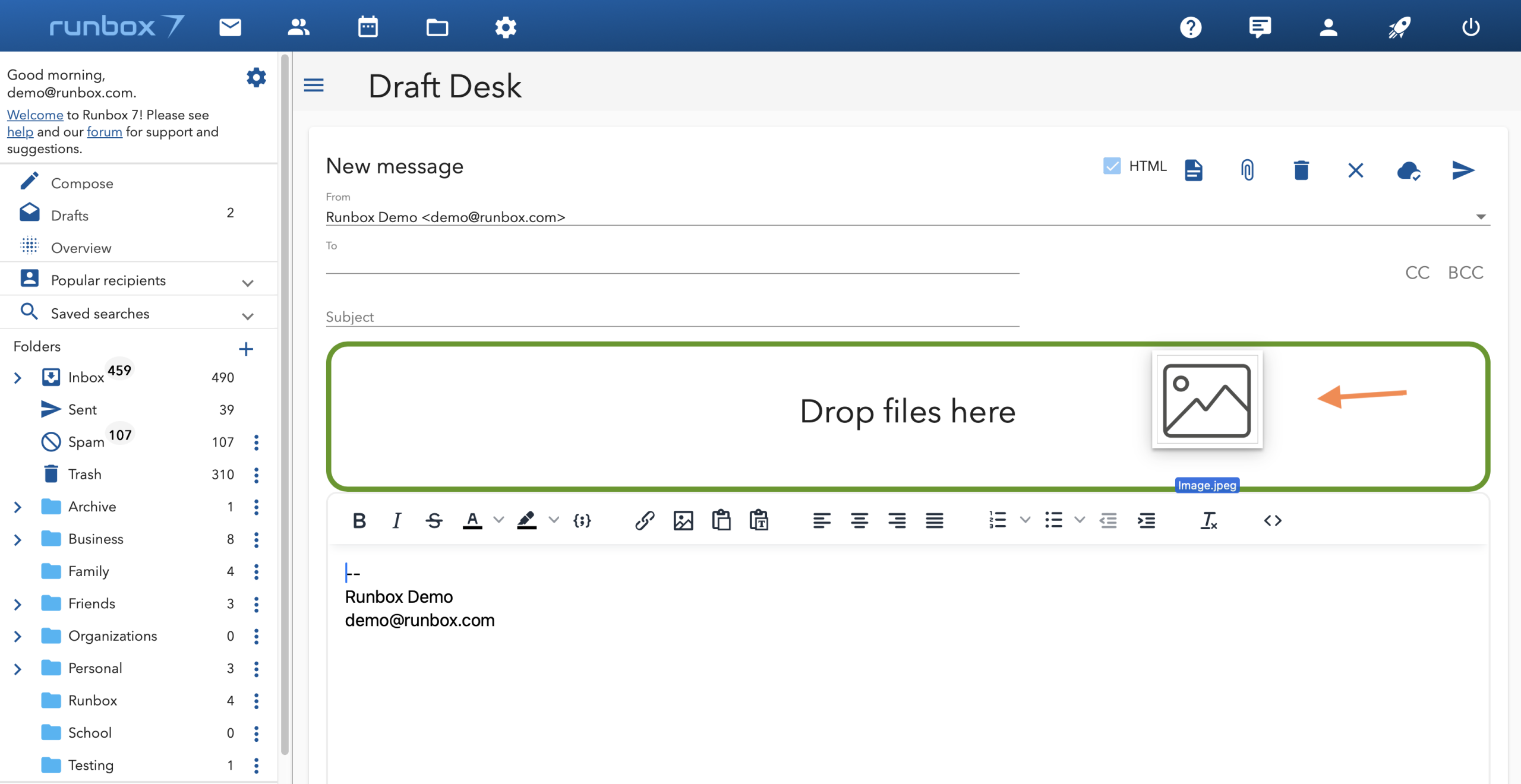
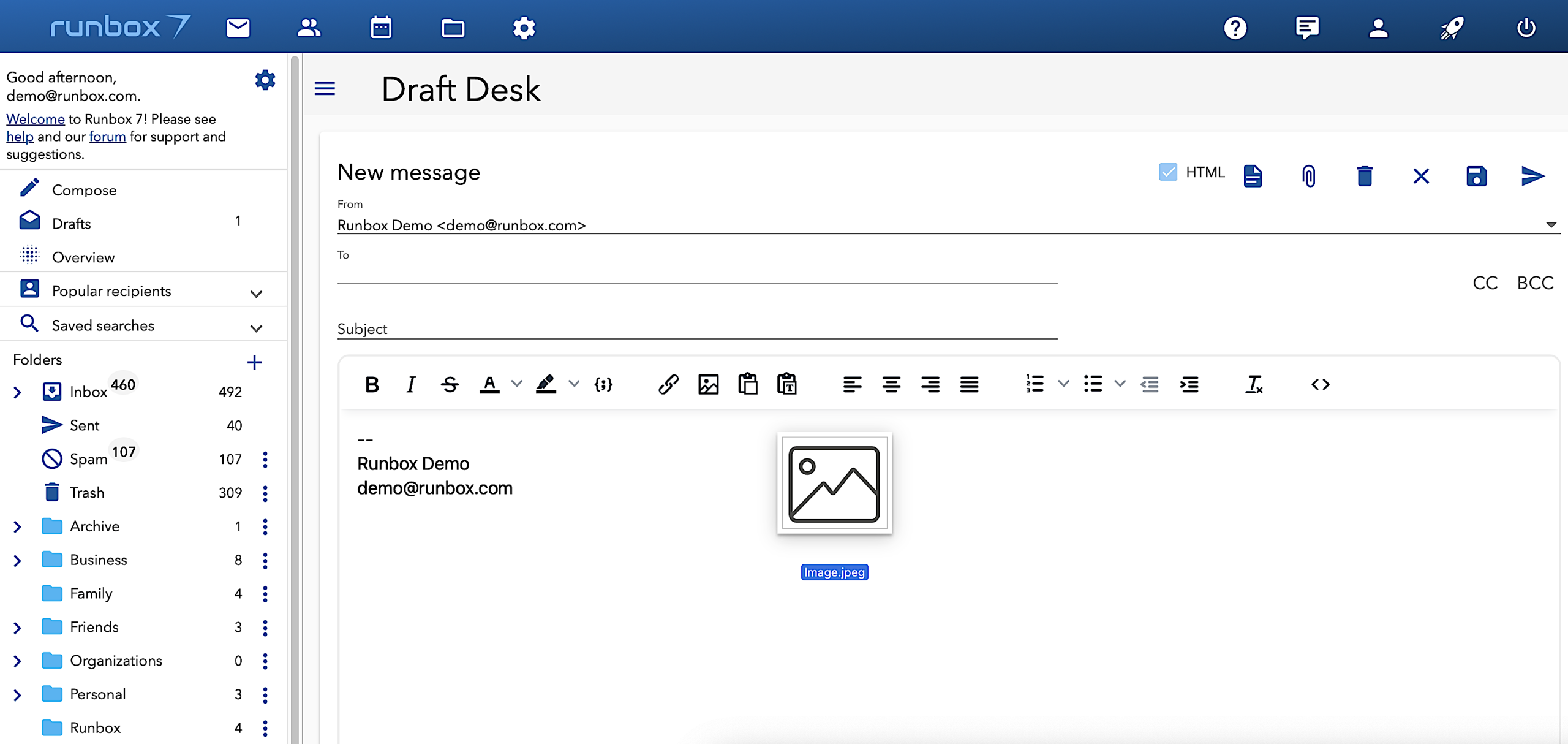
You can drag and drop images right in the message body area as well.
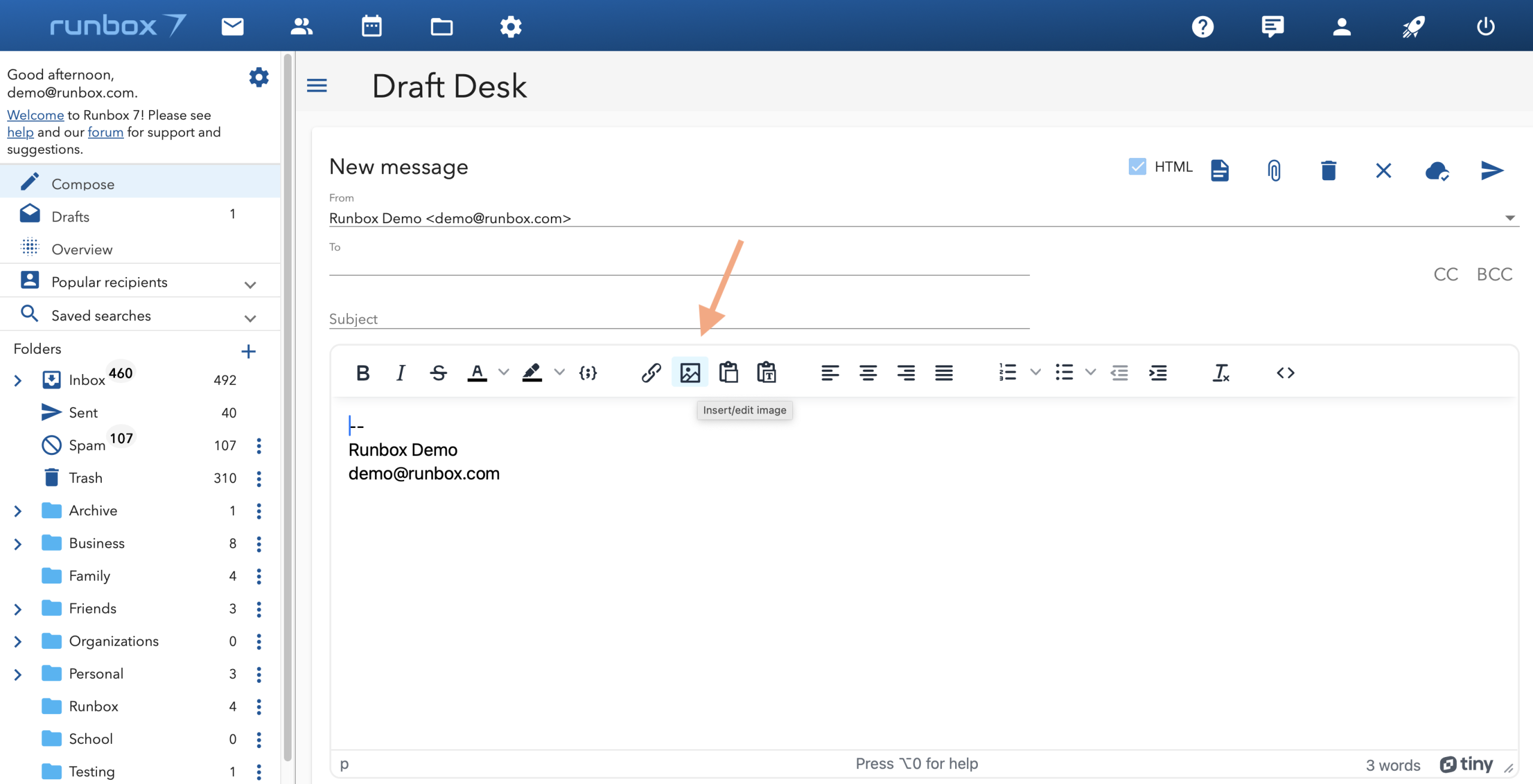
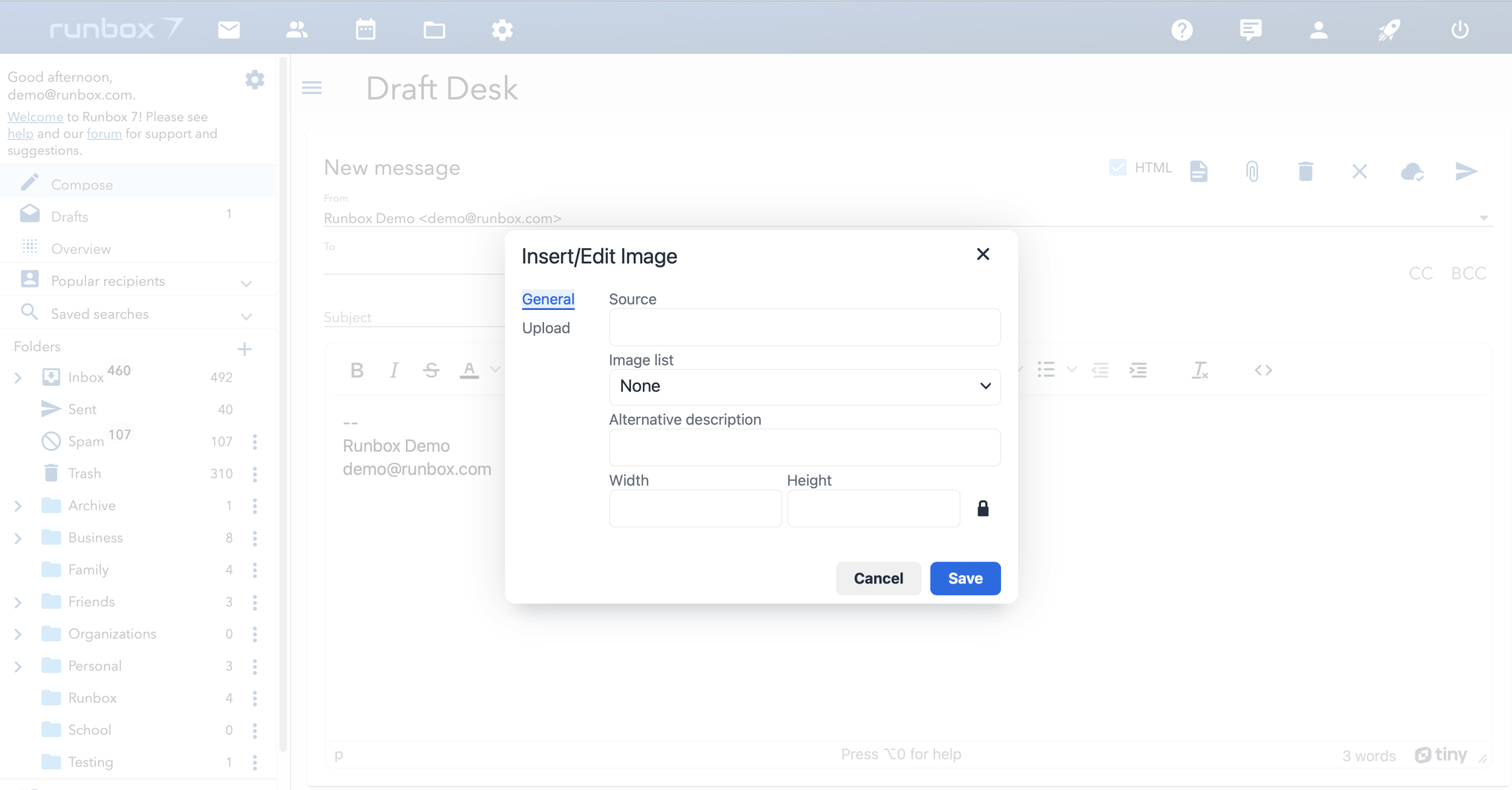
You can also drag images into the attachment area and then add it to the message manually by clicking the Image icon in the message body toolbar and selecting it from the list of files.
Synchronized account index

At the bottom of the folder pane, you’ll find the “Synchronize Index” option. When you first log in to your account, a pre-generated email index is synchronized from the server to your device. This ensures a fast and efficient webmail experience, especially when navigating and searching your emails.
Key Points
- Available Everywhere: Synchronization works across all devices using a web browser. For mobile devices, you can download and install the Progressive Web App (PWA) for an enhanced experience.
- Efficiency: If you choose not to download the index, messages will be fetched from the central database, which is less efficient.
- Compact Size: The account index is small compared to your actual message content. For example, an index for a 6 GB account is typically less than 100 MB, yet it enables full search across your entire account.
Managing Synchronization
- To stop synchronization and remove the index from your device, click “Stop Index Synchronization” at the bottom of the folder pane.If you previously opted out of synchronization, you can re-enable it by clicking “Synchronize Index” in the same location.
Frequently Asked Questions
Which browsers are supported by Runbox 7?
All major browsers are supported, including Firefox, Edge, Safari, Chrome, Opera and others.
Internet Explorer is not supported because it does not support the technology used in Runbox 7, and has been discontinued by Microsoft in favor of Edge.
What is the Synchronized Index?
The Synchronized Index is a pre-generated email index that syncs from the server to your device when you first log in to Runbox 7. It enables fast navigation and instant search across all your emails, even offline. The index is compact, typically much smaller than your actual email storage, and ensures a smooth, efficient webmail experience. If you choose not to sync the index, your emails will load from the server, which may be slower. You can manage synchronization at the bottom of the folder pane.
Does searching work without the local index?
Yes, the search feature will revert to using the message index on the server if there isn’t a local index, but it will be somewhat slower.
Does the client need to download entire messages when adding to the search index?
No – it only needs the relevant headers (from, to, subject, date etc) and the terms from the message content. Currently the text/plain part is transferred, but this can be reduced to terms only.
What about low bandwidth clients, will they need to download all messages for indexing?
No – the search index is cached on the client, so only new messages headers and terms will have to be downloaded.
But what if the client doesn’t have any cached search index?
If an index for your account for some reason isn’t available on the server, the client will by default create an index for the most recent 1000 messages.
But I need to search more than the 1000 recent messages
The client will offer an option to download relevant headers and terms for the entire or partial mail history. The size of this will be very similar to a pre-built index on the server.
How big is the search index?
The index is quite small compared to the actual messages in your account, and usually less than 10% of your total email storage space. That means 15-20MB for an account with 1 GB email.
Does the new app work offline?
Yes, the local search index does not require an internet connection, so you can search your email without being online.
What about reading messages offline?
We may offer an option to cache some messages to be available for reading offline.
Does the new app require more bandwidth than the current Webmail?
No, it requires less. The HTML and Javascript are less in size than the login page of runbox.com, and it only needs to download data when the app is loaded, unlike the current Webmail that downloads new HTML for each request.
I’m using a public PC and I don’t want a search index left on that device.
You should use a “Private browsing” mode when using public PCs, which prevents the index (and other data) from being stored on the local disk. If you forget to do so, just hit the “Remove local search index” button at the bottom of the folder pane, and it’s all gone from your device.
Where is the search index stored on my device?
The search index is stored as a persistent database in the browser’s IndexedDB location, which works as a normal filesystem unlike the browser’s cache. By using this database, the Runbox 7 Webmail app can re-use the index without having to download or generate it on each session.
The location of IndexedDB depends on the browser you are using, but it is not part of the browser’s regular cache. Therefore it is not deleted when the browser’s cache is emptied — if you wish to delete the local index, click the “Stop index synchronization” button at the bottom of the folder pane.
For instance, in Firefox on a Windows platform, the location would be:
C:\Documents and Settings\<username>\Application Data\Mozilla\Firefox\Profiles\<xxxx>.default\indexedDB\<databaseid>
Is it safe to store the search index locally?
Whenever you visit a website, your browser will cache data locally unless it’s in “Private browsing” mode. The search index is stored outside of the browser’s cache, but inside the directory that contains the application data for the current user profile.
When using a personal computer, you may choose to encrypt your data storage which will protect any locally stored data.
If you are using a public access computer, the cache and other downloaded data is removed when you log out of the session (which you should always do). You can click the “Remove local search index” button at the bottom of the folder pane before logging out of Runbox 7 to ensure that the search index is deleted.